

What Are Status Pages?
Status pages are public-facing websites that display the real-time operational status of your services. They help you transparently communicate with users about:- Current system status
- Ongoing incidents
- Scheduled maintenance
- Historical uptime
- Service performance
Status Pages List
Access your status pages from the Status Pages section in the sidebar.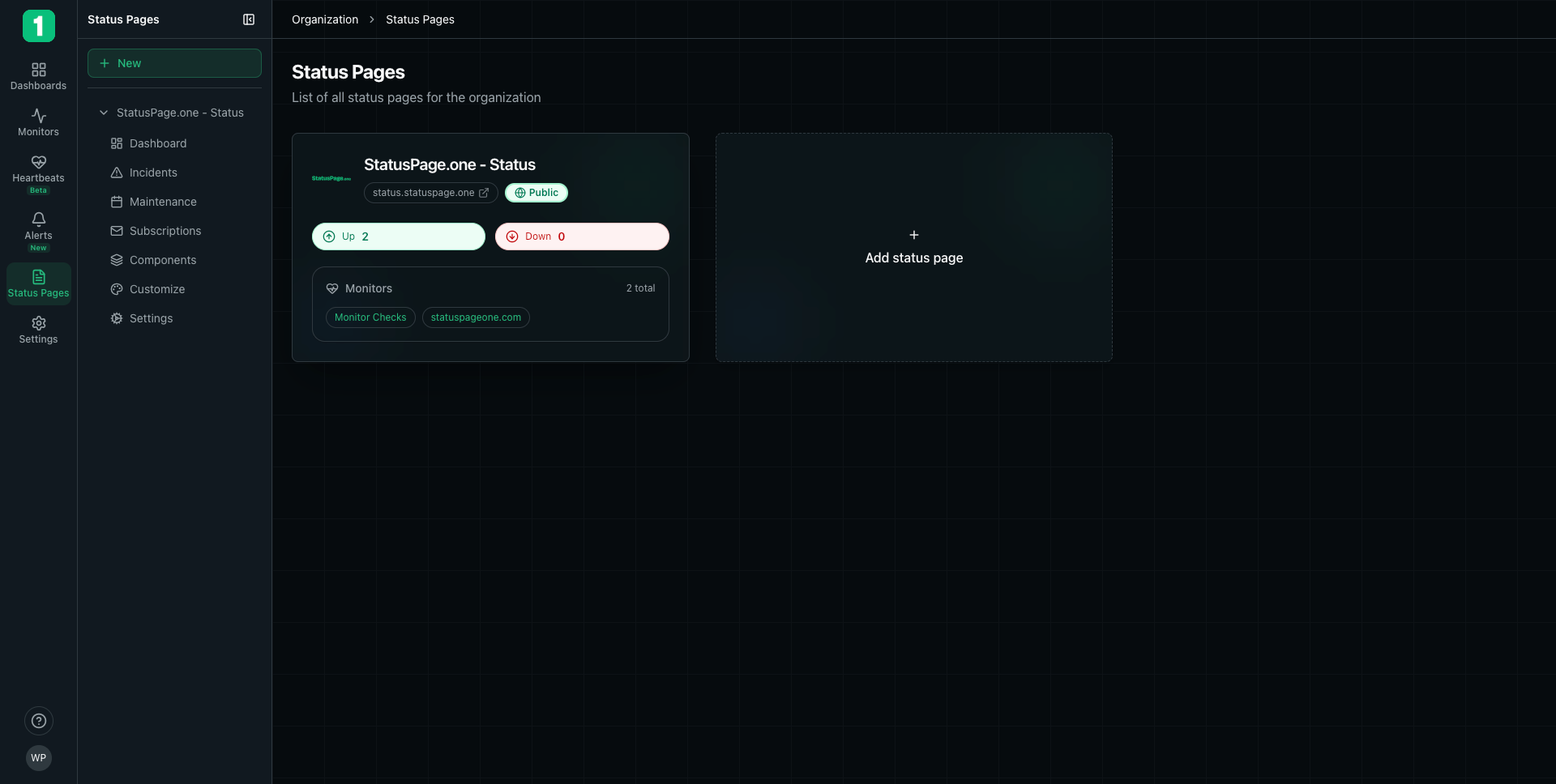
Status Page Card
Each status page card displays:- Page Name - Your status page title (e.g., “StatusPage.one - Status”)
- Public URL - The web address where users access your status page
- Visibility Badge - Shows if the page is Public or Private
- Status Overview
- Up - Number of operational monitors
- Down - Number of failing monitors
- Monitor List - Quick view of linked monitors (e.g., “Monitor Checks”, “statuspageone.com”)
- Total Count - How many monitors are displayed (e.g., “2 total”)
Status Page Navigation
When you select a status page, you can access:- Dashboard - Analytics and performance metrics
- Incidents - Manage and track service incidents
- Maintenance - Schedule and communicate planned downtime
- Subscriptions - View users subscribed to updates
- Components - Organize monitors into logical groups
- Customize - Adjust branding and appearance
- Settings - Configure domain, badges, and other options
Status Page Dashboard
The dashboard provides insights into your status page’s performance and audience.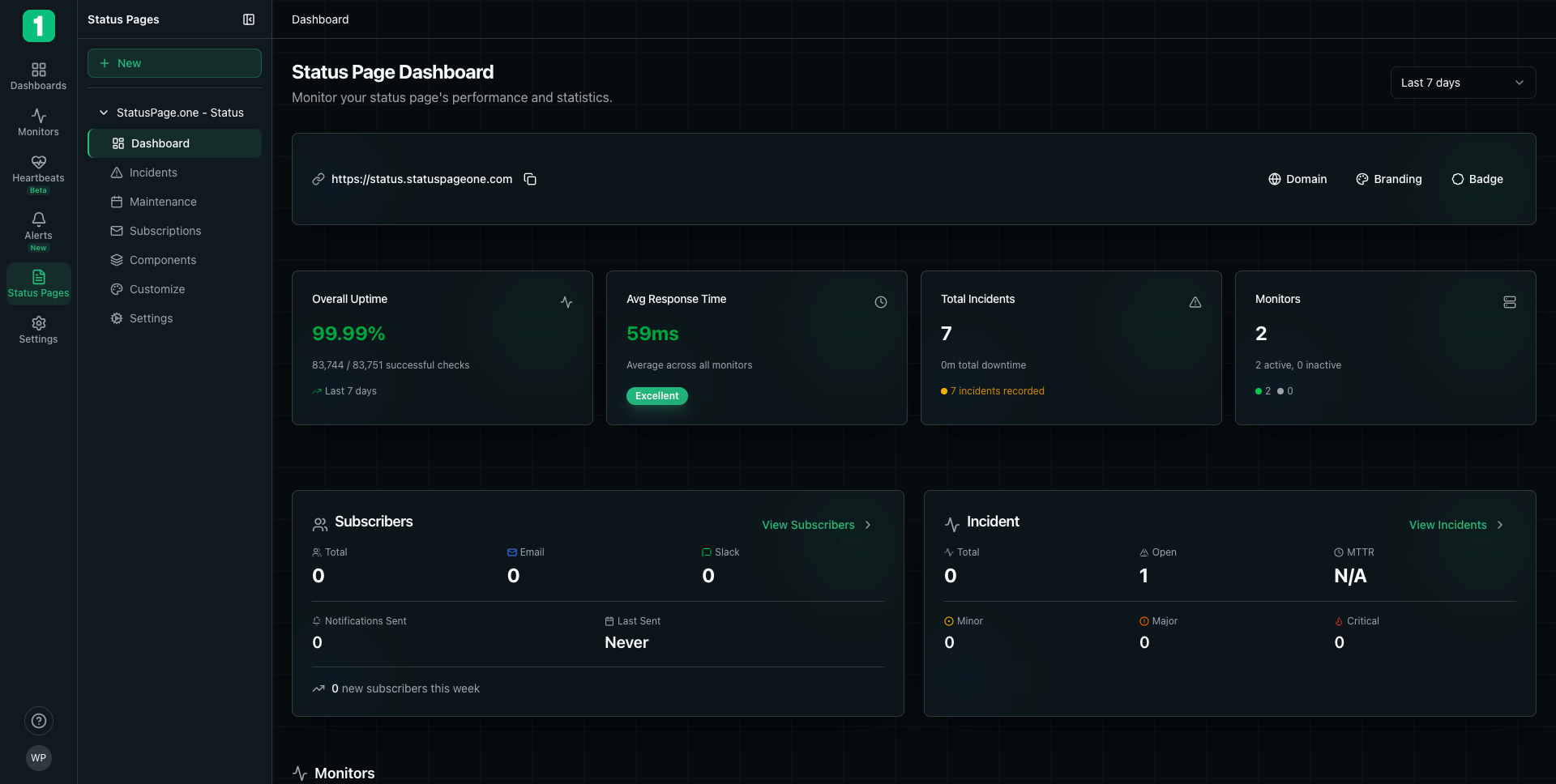
Key Features
Public URL Display:- Shows your status page URL
- Copy button for quick sharing
- Quick links to Domain, Branding, and Badge settings
- Overall Uptime - Aggregate uptime across all monitors
- Avg Response Time - Average performance with quality badge (Excellent/Good/Poor)
- Total Incidents - Incident count and downtime minutes
- Monitors - Active/inactive monitor count with status indicators
- Total Subscribers - Overall subscription count
- Email Subscribers - Users receiving email notifications
- Slack Subscribers - Teams receiving Slack notifications
- Notifications Sent - Total notifications delivered
- Last Sent - When the last notification went out
- Growth Tracking - New subscribers this week
- Total Incidents - All incidents in the period
- Open Incidents - Currently active incidents
- MTTR - Mean Time To Resolution
- Severity Breakdown - Minor, Major, and Critical incident counts
Time Range Selection
Use the time range dropdown (Last 7 days, 30 days, etc.) to view metrics for different periods.Public Status Page
This is what your users see when they visit your status page.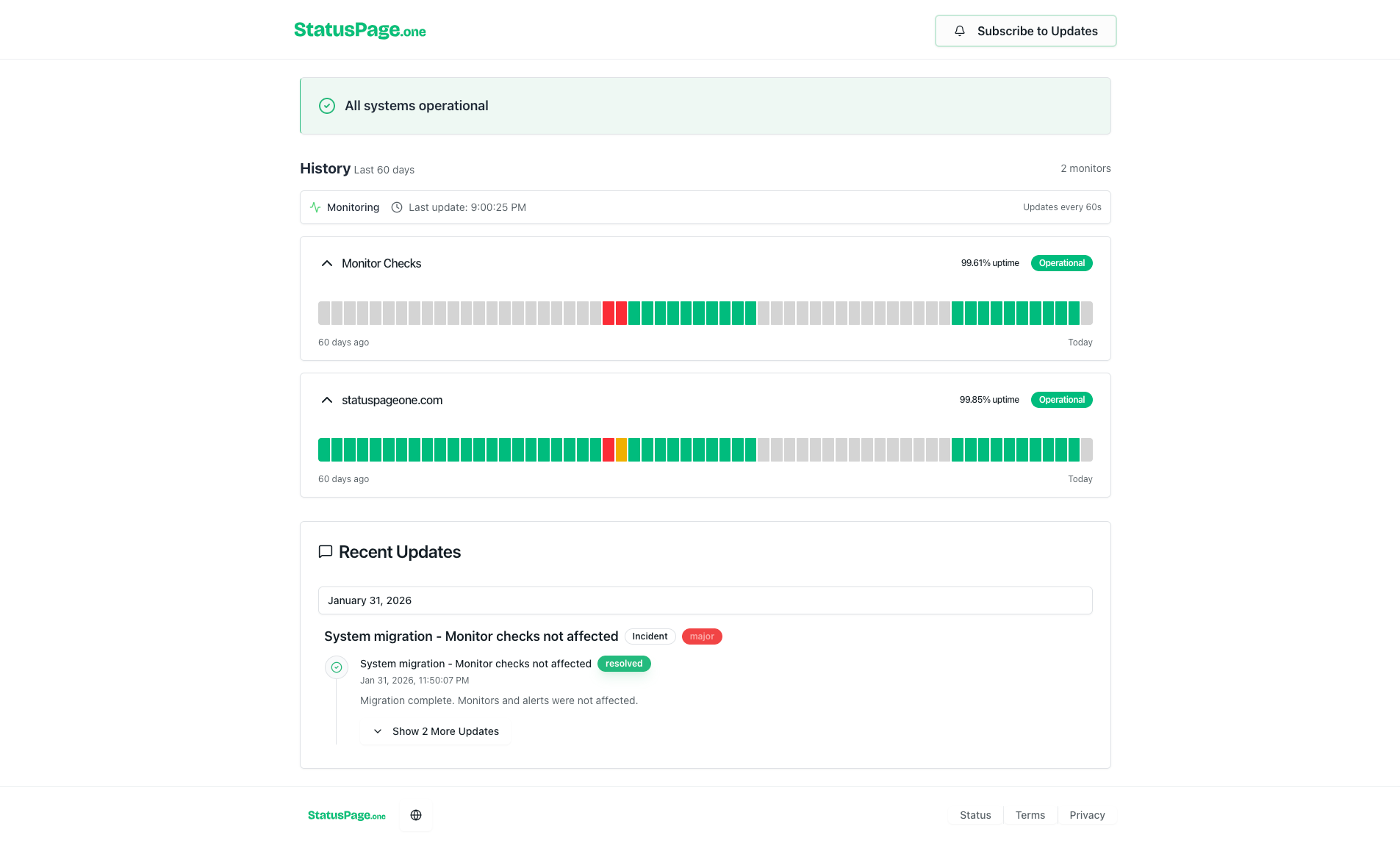
Public Page Features
Overall Status Banner:- Green banner: “All systems operational”
- Yellow banner: “Some systems experiencing issues”
- Red banner: “System outage in progress”
- Each monitor shows as a component with name and status
- Uptime Percentage - Displayed prominently (e.g., “99.61% uptime”)
- Status Badge - Color-coded indicator (Operational/Degraded/Down)
- Uptime History - Visual bar chart showing last 60 days
- Green bars: Operational periods
- Orange/Yellow bars: Degraded performance
- Red bars: Downtime
- Gray bars: No data
- Monitoring Status - Shows if monitoring is active
- Last Update - Timestamp of most recent check
- Update Frequency - How often the page refreshes (e.g., “Updates every 60s”)
- Displays incident updates and maintenance announcements
- Shows date, incident title, and status badge
- Expandable for more details (“Show 2 More Updates”)
- Users can click “Subscribe to Updates” to receive notifications
- Options for email or Slack subscriptions
- Links to Status, Terms, and Privacy pages
- Company branding
Creating Your First Status Page
Common Use Cases
SaaS Application
Display API, web app, and database status for your customers
E-commerce Site
Show website, checkout, and payment processor availability
Internal Services
Communicate internal tool and service status to employees
API Provider
Share API endpoint health and performance metrics
Status Page vs Monitor
Key Difference:- Monitor - Backend check that tests your service (internal view)
- Status Page - Public website that displays monitor status (user-facing view)
- Component - How a monitor is labeled on your status page
Best Practices
Keep It Simple
Keep It Simple
Don’t overwhelm users with technical details. Group related services into broader components like “API” or “Website” rather than listing every microservice.
Be Proactive
Be Proactive
Post incident updates before users report problems. This reduces support load and builds trust.
Update Regularly
Update Regularly
During incidents, provide frequent updates (every 30-60 minutes) even if there’s no new information. It shows you’re actively working on the issue.
Link from Your App
Link from Your App
Add a “System Status” link in your application footer or header so users can easily find it.
Promote Subscriptions
Promote Subscriptions
Encourage users to subscribe so they receive automatic notifications during incidents.
Use Custom Domains
Use Custom Domains
Configure a custom domain (status.yourcompany.com) for a more professional appearance.
Sharing Your Status Page
Where to Link Your Status Page
- Application Footer - Standard placement most users expect
- Help Center - Include in your support documentation
- Email Signatures - Let support team share it easily
- Social Media Profiles - Add to Twitter, LinkedIn bio
- API Documentation - Essential for developer audiences
- Mobile Apps - Show during offline/error states
Promotion Tips
Status Page Analytics
The dashboard helps you understand:- User Engagement - Subscriber growth and notification delivery
- Service Reliability - Uptime trends and incident frequency
- Communication Effectiveness - How many users receive updates
- Performance Trends - Response time patterns over time
Customize Your Status Page
Learn how to organize monitors into components and customize your status page
Next Steps
Add Components
Organize monitors into logical groups
Custom Domain
Use your own domain (status.company.com)
Embed Badges
Add status badges to your website
Manage Incidents
Create and update incidents