

Overview
Status badges are dynamic images that display your system’s current status. They automatically update to reflect your service health, providing users with at-a-glance status information.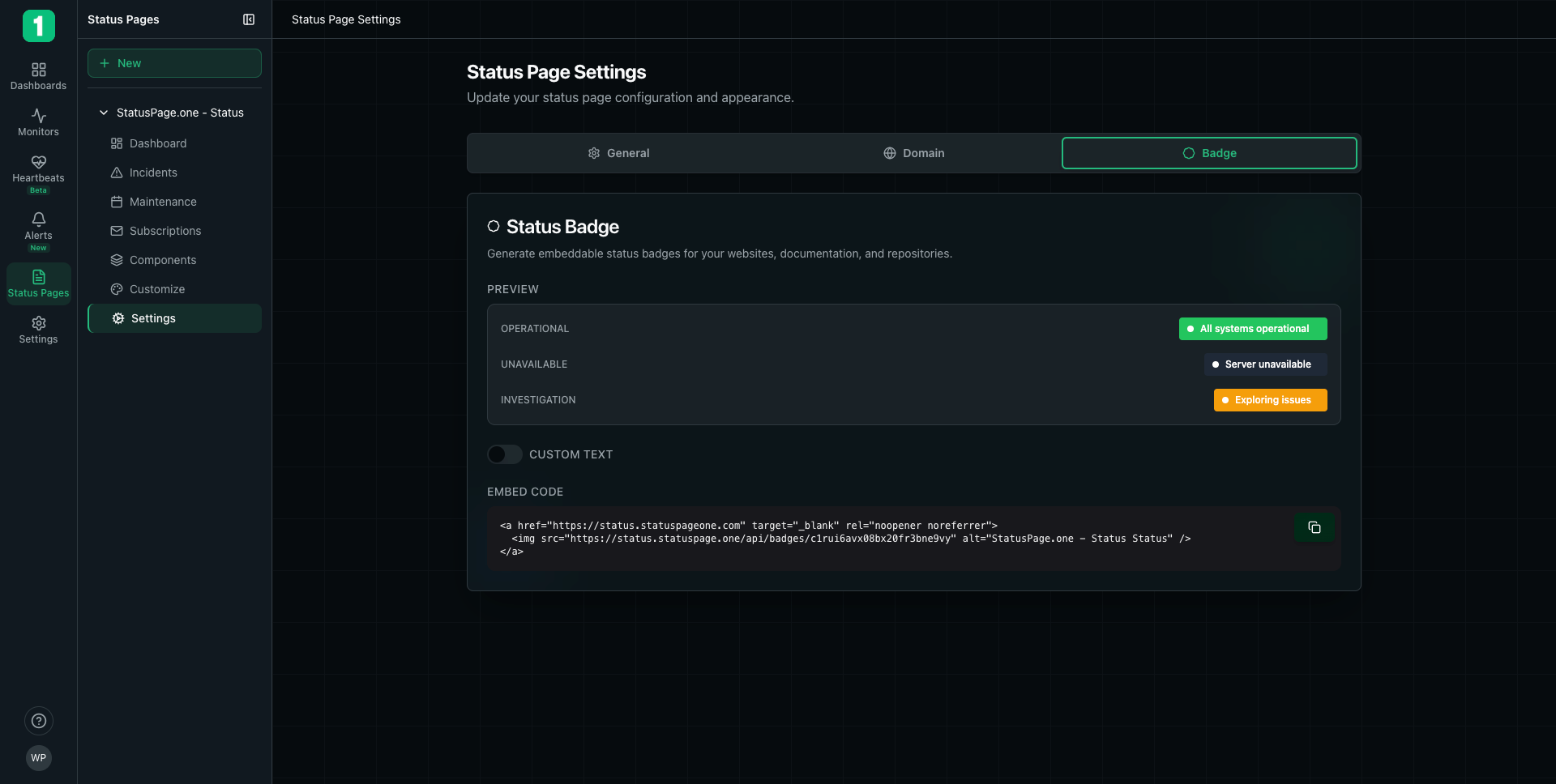
Accessing Badge Settings
- Navigate to Status Pages in the sidebar
- Select your status page
- Click Settings
- Select the Badge tab
Badge Preview
The badge settings show three preview states:Operational (Green)
- Text: “All systems operational”
- Color: Green background
- Indicator: Green dot
- Meaning: All monitors are passing checks
Unavailable (Red)
- Text: “Server unavailable”
- Color: Red background
- Indicator: Red dot
- Meaning: One or more monitors are down
Investigation (Yellow/Orange)
- Text: “Exploring issues”
- Color: Orange/Yellow background
- Indicator: Orange dot
- Meaning: System is experiencing issues under investigation
Badges update automatically based on your monitor status. You don’t need to manually change them.
Custom Text Option
You can enable custom text for your badge instead of using the default status messages: Toggle: CUSTOM TEXT (on/off switch) When enabled, you can specify:- Custom operational message
- Custom degraded message
- Custom down message
Embed Code
The EMBED CODE section provides ready-to-use HTML code for embedding the badge.HTML Embed
- Links to your status page
- Opens in new tab (
target="_blank") - Includes security attributes (
rel="noopener noreferrer") - Dynamic image that updates automatically
- Alt text for accessibility
Where to Use Badges
Website Footer
Standard placement most users expect to find
Documentation
Show API or service status in your docs
GitHub README
Display status in your repository README
Application Dashboard
In-app status visibility
Support Pages
Help users check status before contacting support
Blog
Include in incident post-mortems
Implementation Examples
Website Footer
GitHub README (Markdown)
React Component
Next.js Component
Badge Behavior
Automatic Updates
- Badges reflect current system status in real-time
- No caching - always shows current state
- Updates within seconds of status changes
- No manual intervention required
Click Behavior
When users click the badge:- Opens your status page in a new tab
- Provides full incident details
- Shows historical uptime
- Allows status subscriptions
Customization
Badge Styles
While the badge appearance is standardized, you can customize the surrounding context: Wrapper Styling:Best Practices
Always Link to Full Status Page
Always Link to Full Status Page
Users clicking the badge should go to your full status page for details, not just see a static image.
Use Descriptive Alt Text
Use Descriptive Alt Text
Include meaningful alt text like “System Status” or “[YourCompany] Status” for accessibility.
Place in Visible Location
Place in Visible Location
Put badges where users naturally look during issues - footer, header, or documentation.
Don't Cache Badge Images
Don't Cache Badge Images
Ensure your web server or CDN doesn’t cache the badge image, as it needs to update in real-time.
Test in Different Browsers
Test in Different Browsers
Verify the badge displays correctly across browsers and devices.
Include in Documentation
Include in Documentation
Add badges to API documentation so developers can quickly check service health.
Common Placements
Application Header
Documentation Sidebar
Troubleshooting
Badge not updating
Badge not updating
Cause: Browser or CDN caching.Solution:
- Clear browser cache
- Ensure no caching headers on badge URL
- Check CDN settings to bypass cache for badge endpoint
Badge shows broken image
Badge shows broken image
Cause: Incorrect badge ID or URL.Solution:
- Verify the embed code is copied correctly
- Check that the badge ID matches your status page
Badge not clickable
Badge not clickable
Cause: Missing or broken anchor tag.Solution: Ensure the
<img> is wrapped in an <a> tag linking to your status page.Badge vs Status Page Widget
Status Badge:- ✓ Lightweight image
- ✓ Fast loading
- ✓ Simple integration
- ✗ Limited information (just current status)
- ✗ Requires click to see details
- ✓ Complete status information
- ✓ Historical data
- ✓ Incident details
- ✗ Requires separate page visit
- ✗ More complex to embed
Next Steps
Custom Domain
Use your own domain for badge links
Components
Configure what services show on your status page
Incidents
Manage incidents that affect badge status
Status Page Overview
Back to status pages overview