

Overview
The Members section allows you to invite team members to collaborate on monitoring and status page management.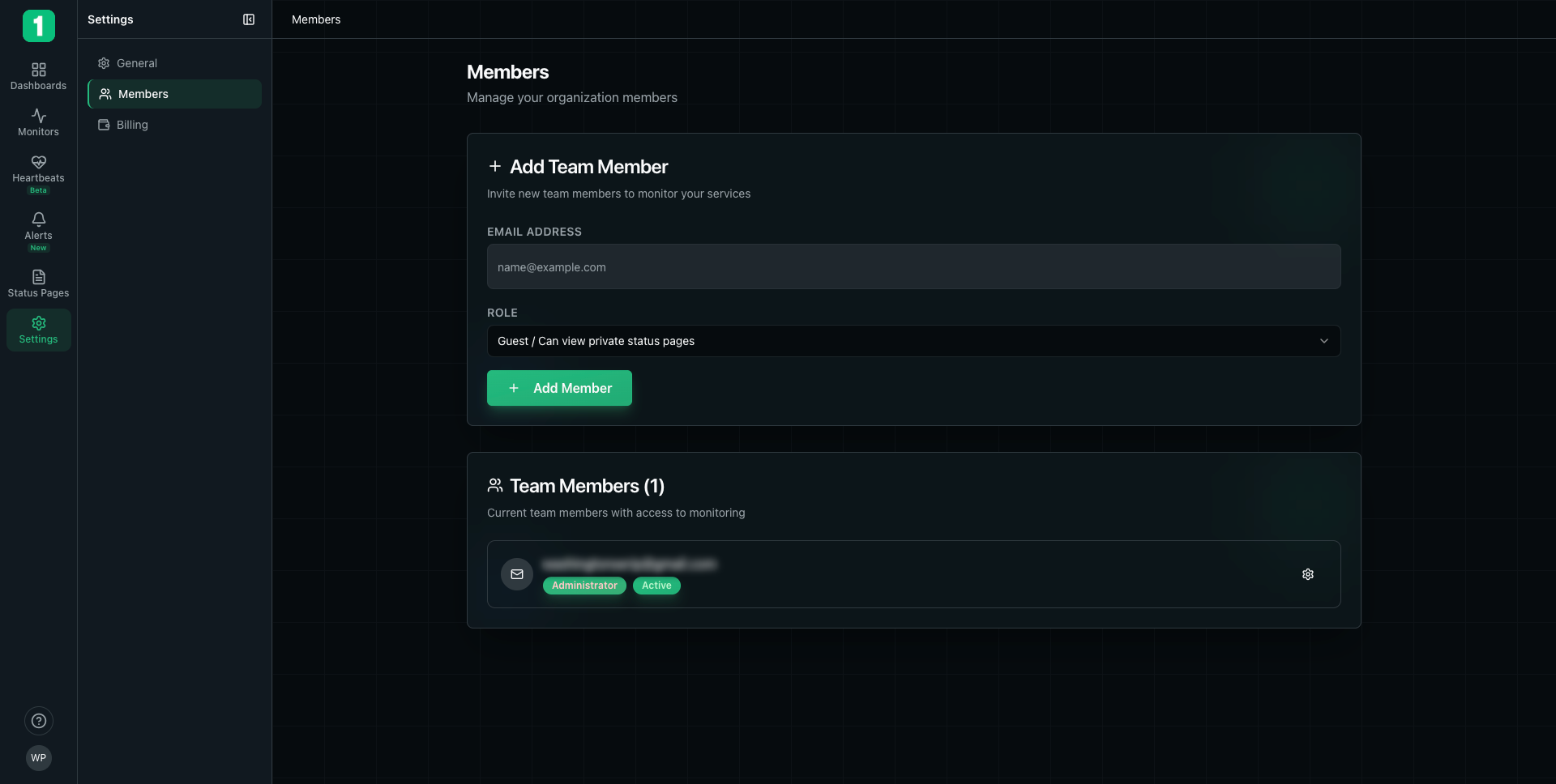
Inviting Team Members
Add Team Member Form
- Navigate to Settings → Members
- Enter the member’s email address
- Select a role from the dropdown
- Click + Add Member
Member Roles
Guest - Can view private status pages- Limited access to read-only views
- Cannot modify monitors or settings
Current Team Members
The Team Members section shows all active members with:- Email address
- Role badge (e.g., “Administrator”)
- Status badge (e.g., “Active”)
- Settings icon - Click to manage the member
Managing Members
For each team member, you can:- Change their role
- Resend invitation (if pending)
- Remove from organization
Best Practices
Use Appropriate Roles
Use Appropriate Roles
Grant minimum necessary permissions. Not everyone needs admin access.
Review Members Regularly
Review Members Regularly
Periodically review team members and remove those who no longer need access.
Document Responsibilities
Document Responsibilities
Clarify who is responsible for different monitors or status pages.
Invitations
When you invite someone:- They receive an email invitation
- They create an account or sign in
- They accept the invitation
- They gain access to your organization
Next Steps
Organization Settings
Configure organization preferences
Alert Rules
Set up team notifications