

Overview
Monitor-specific alerts allow you to configure custom notifications for individual monitors. This is useful when different monitors require different notification channels or recipients.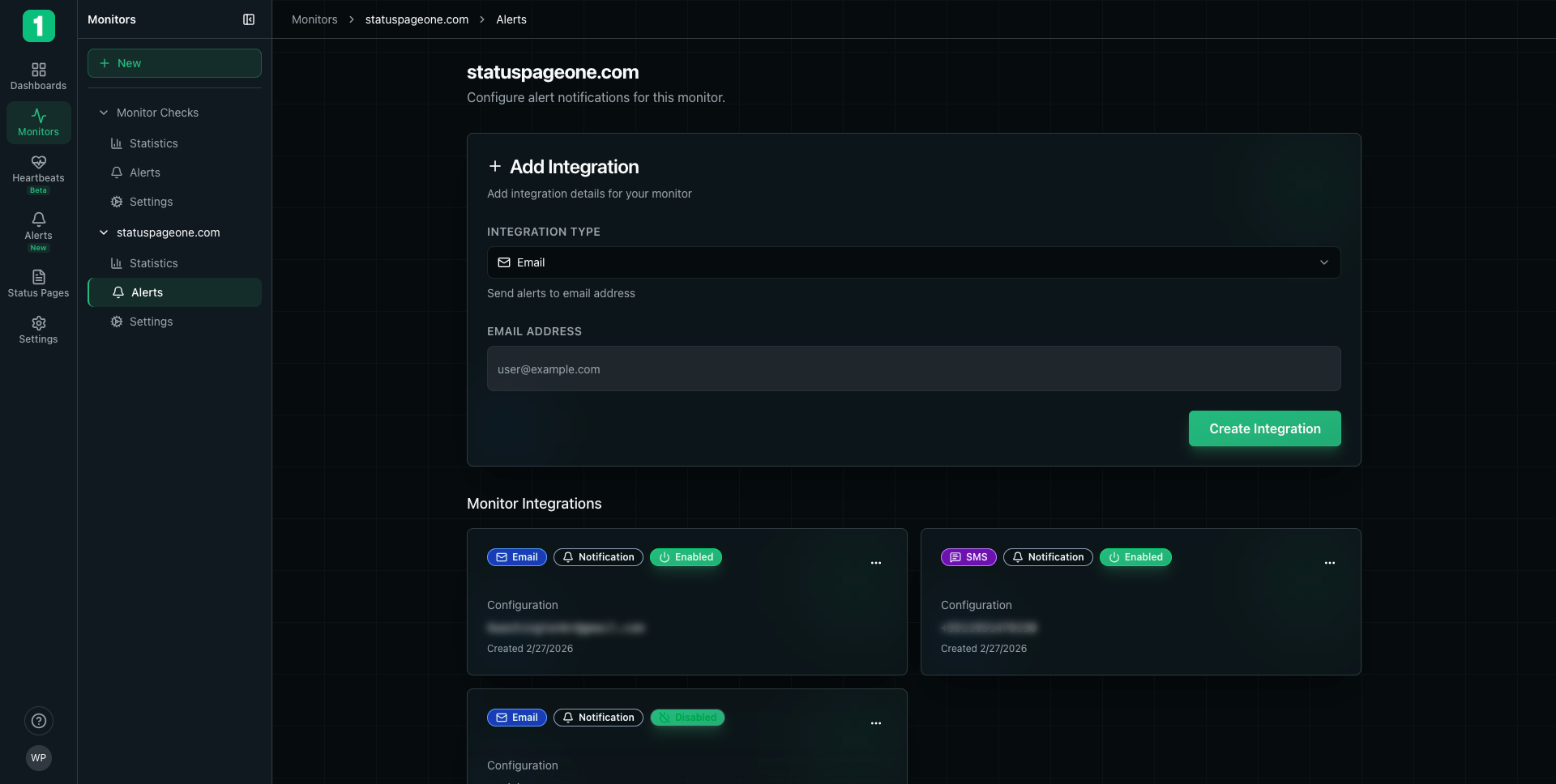
Accessing Monitor Alerts
To configure alerts for a specific monitor:- Navigate to Monitors in the sidebar
- Click on the monitor name to expand it
- Select Alerts
Adding an Integration
Click + Add Integration to attach a notification channel to this monitor.Available Integration Types
Send alert emails to specific addresses
SMS
Receive text message notifications
Slack
Post alerts to Slack channels
Webhook
Send HTTP requests to custom endpoints
Microsoft Teams
Post to Teams channels
Discord
Send to Discord channels
Telegram
Send to Telegram chats
More
Additional integrations available
Email Integration
To add an email alert:- Click + Add Integration
- Select Email from the integration type dropdown
- Enter the email address
- Click Create Integration
- Send alerts to team members
- Notify on-call engineers
- Alert external stakeholders
- Route to ticketing systems via email
SMS Integration
To add SMS alerts:- Click + Add Integration
- Select SMS from the integration type dropdown
- Enter the phone number (with country code)
- Click Create Integration
- Immediate notifications for critical services
- Reach on-call engineers anywhere
- Backup notification when email is unavailable
Managing Integrations
Each integration card displays:- Integration Type Badge - Shows the channel type (Email, SMS, etc.)
- Notification Status Badge - Indicates if notifications are enabled
- Enabled/Disabled Toggle - Shows current state (Enabled/Disabled)
- Configuration - The destination (email address, phone number, etc.)
- Created Date - When the integration was added
- Actions Menu (···) - Additional options
Integration States
Enabled (Green badge):- ✓ Integration is active
- ✓ Will receive notifications when monitor goes down
- ✓ Will receive recovery notifications
- ✗ Integration is paused
- ✗ Will not receive notifications
- ✗ Keeps configuration for easy re-enabling
Disabling an Integration
To temporarily stop notifications without deleting the integration:- Click the ··· menu on the integration card
- Select Disable
Enabling an Integration
To resume notifications:- Click the ··· menu on the integration card
- Select Enable
Deleting an Integration
To permanently remove an integration:- Click the ··· menu on the integration card
- Select Delete
- Confirm the deletion
Deleting an integration removes it permanently. You’ll need to reconfigure it if you want to add it back later.
Notification Behavior
When Notifications Are Sent
Integrations receive notifications when: Monitor Goes Down:- Multiple consecutive checks fail (based on alert sensitivity)
- Monitor status changes from operational to down
- First successful check after being down
- Monitor status returns to operational
- Monitor experiences partial failures
- Response times exceed thresholds
Notification Content
Alert notifications typically include:- Monitor name - Which monitor triggered the alert
- Status - Current state (Down, Degraded, or Recovered)
- Timestamp - When the issue was detected
- Details - Response code, error message, or timeout information
- Link - Direct link to monitor statistics
Monitor-Specific vs. Organization Alerts
Monitor-Specific Alerts (This Page)
- ✓ Apply to individual monitors
- ✓ Custom notifications per service
- ✓ Specific recipients for each monitor
- ✓ Added on the monitor’s Alerts page
Organization-Wide Alert Rules
- ✓ Apply to all monitors (or filtered groups)
- ✓ Centralized notification management
- ✓ Consistent alerting across services
- ✓ Configured in organization Settings
Configure Global Alert Rules
Set up organization-wide alert rules that apply to multiple monitors
Best Practices
Start with Email
Start with Email
Begin with email notifications as they’re reliable and don’t incur additional costs. Add SMS for critical monitors only.
Notify the Right People
Notify the Right People
Configure alerts to reach the team responsible for each service. Don’t send all alerts to everyone.
Use Multiple Channels
Use Multiple Channels
For critical monitors, add redundant notifications (e.g., both email and SMS) to ensure alerts are received.
Test Your Integrations
Test Your Integrations
After adding integrations, verify they work by checking the next scheduled downtime or using test features.
Disable Instead of Delete
Disable Instead of Delete
If you temporarily don’t need notifications, disable integrations rather than deleting them to preserve configuration.
Document On-Call Procedures
Document On-Call Procedures
Ensure team members know what to do when they receive alerts. Include runbooks and escalation procedures.
Common Configurations
Critical Production Service
Internal Tool
Public Website
Troubleshooting
Not receiving notifications
Not receiving notifications
Check:
- Integration is Enabled (green badge)
- Email address or phone number is correct
- Email isn’t in spam folder
- SMS number includes correct country code
Receiving too many notifications
Receiving too many notifications
Solutions:
- Increase alert sensitivity in monitor settings (more retries before alerting)
- Disable non-critical integrations
- Use organization-wide alert rules with filtering instead
Delayed notifications
Delayed notifications
Note: Notifications are sent immediately when issues are detected. Delays usually indicate:
- Email server processing time
- SMS carrier delivery time
- Network congestion
Integration Types Reference
| Type | Immediate | Persistent | Best For |
|---|---|---|---|
| ✓ | ✓ | Detailed information, ticketing integration | |
| SMS | ✓✓✓ | ✗ | Critical alerts, on-call notifications |
| Slack | ✓✓ | ✓ | Team collaboration, incident response |
| Webhook | ✓✓ | ✗ | Custom integrations, automation |
| Teams | ✓✓ | ✓ | Microsoft-centric teams |
| Discord | ✓✓ | ✓ | Gaming/tech communities |
| Telegram | ✓✓ | ✓ | Mobile-first teams |
- ✓✓✓ = Best choice for this use case
- ✓✓ = Good choice
- ✓ = Suitable
- ✗ = Not ideal
Next Steps
View Statistics
Analyze monitor performance and uptime
Organization Alert Rules
Configure organization-wide alerting
Integrations
Set up integrations for all monitors
Monitor Settings
Adjust monitor configuration