

What Are Components?
Components are how monitors appear on your public status page. They allow you to:- Choose which monitors to display publicly
- Group related monitors together
- Present a simplified view to users
- Control what information is shared
Accessing Components
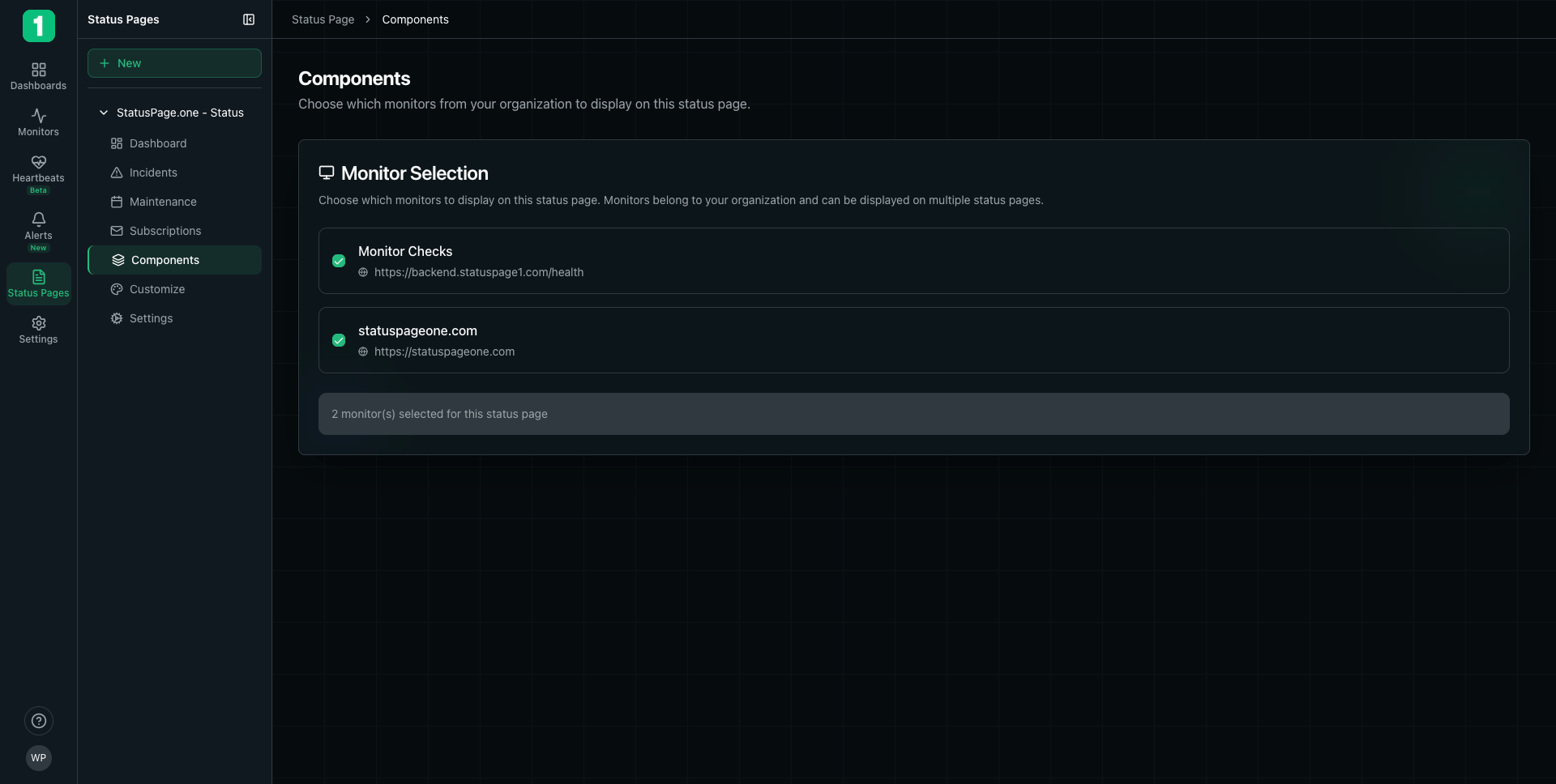
To manage components for a status page:- Navigate to Status Pages in the sidebar
- Select your status page
- Click Components
Monitor Selection
The Components page shows a list of all monitors in your organization that you can display on this status page.Selecting Monitors
Each monitor card displays:- Monitor Name - The name of your monitor (e.g., “Monitor Checks”, “statuspageone.com”)
- URL - The endpoint being monitored
- Checkbox - Select to display on this status page
- Check the box next to the monitor name
- The selection count updates automatically (e.g., “2 monitor(s) selected for this status page”)
- Uncheck the box next to the monitor name
- It will no longer appear on your public status page
Monitors can be displayed on multiple status pages. This is useful if you have different status pages for different customer segments or regions.
Component Display
When you select a monitor as a component:- It appears on your public status page with its current status
- The monitor name becomes the component name
- Uptime percentage and history are displayed
- Status is updated in real-time
How Components Appear to Users
On your public status page, each component shows:- Component Name - The monitor’s name
- Current Status - Operational, Degraded, or Down with color coding
- Uptime Percentage - Historical uptime (e.g., “99.61% uptime”)
- Uptime History Bar - Visual representation of the last 60 days
Organizing Components
Grouping Related Services
While each monitor creates one component, you can organize your status page by: Creating descriptive monitor names:- ✓ “Website”
- ✓ “API”
- ✓ “Database”
- ✓ “Payment Processing”
- ✗ “nginx-prod-01”
- ✗ “postgres-primary-us-east”
- ✗ “k8s-ingress-controller”
Multiple Monitors per Service
If you have multiple monitors for one service (e.g., primary and backup servers), you can:-
Create monitors with clear names:
- “Database - Primary”
- “Database - Backup”
- Display both on your status page so users see redundancy
- Or show only one if you want a simplified view
Best Practices
Start with Essential Services
Start with Essential Services
Display only user-facing services on your public status page. Internal tools don’t need to be public.
Use Clear Naming
Use Clear Naming
Rename monitors to friendly names before adding them as components. Think about what users call your services.
Limit Component Count
Limit Component Count
Show 3-10 components maximum. Too many overwhelms users. Group related services if needed.
Match Your Architecture
Match Your Architecture
Organize components to match how users think about your service: “Website”, “API”, “Mobile App” rather than infrastructure details.
Be Consistent
Be Consistent
If you have multiple status pages, use similar component organization for consistency.
Component Status Logic
How Status is Determined
Each component’s status is based on its linked monitor:- Operational (Green) - Monitor is passing all checks
- Degraded (Yellow) - Monitor is experiencing partial failures
- Down (Red) - Monitor is failing checks
Multiple Monitors (Future Feature)
In the future, components may support grouping multiple monitors:- Overall status would show the worst state among all linked monitors
- If any monitor is down, the component shows as down
- If all are operational, the component shows as operational
Managing Multiple Status Pages
Using the Same Monitors on Different Pages
Monitors can appear on multiple status pages simultaneously: Use Case: Different pages for different audiencesUpdating Component Selection
When you update which monitors are selected:- Changes appear on the public page immediately
- Historical data remains intact
- Users see the updated component list on next page load
Examples
SaaS Application
E-commerce Platform
API Provider
Troubleshooting
Monitor doesn't appear in the list
Monitor doesn't appear in the list
Cause: You may not have created any monitors yet, or monitors may belong to a different organization.Solution: Create monitors first, then add them to your status page.
Component shows wrong status
Component shows wrong status
Cause: The linked monitor may be incorrectly configured.Solution: Check the monitor’s settings and verify the URL and expected response code are correct.
Changes don't appear on public page
Changes don't appear on public page
Cause: Browser caching may be showing old data.Solution: Refresh your browser (Cmd/Ctrl + Shift + R) to see the latest version.
Next Steps
Customize Appearance
Set up a custom domain for your status page
Embed Badges
Add status badges to your website
Manage Incidents
Create incident updates for your components
Create Monitors
Add more monitors to display