

Accessing Statistics
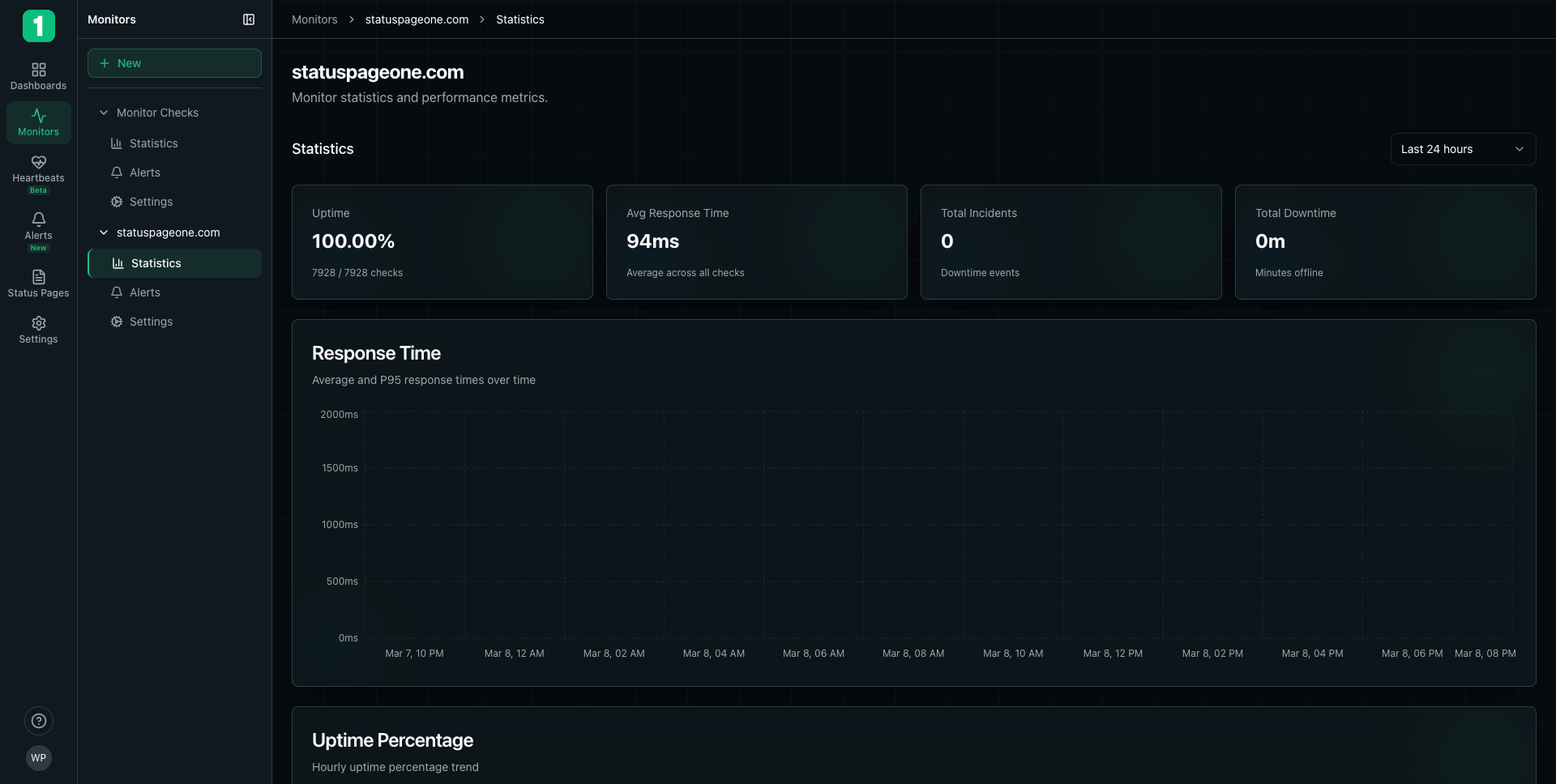
To view detailed statistics for a monitor:- Navigate to Monitors in the sidebar
- Click on the monitor name to expand it
- Select Statistics
Time Range Selection
Use the time range selector in the top right to view statistics for different periods:- Last 24 hours - Most recent day of data
- Last 7 days - Weekly trends
- Last 30 days - Monthly overview
- Last 90 days - Quarterly analysis
- Custom range - Specific date range
Key Metrics
The statistics page displays four primary metrics at the top:Uptime Percentage
Shows the percentage of successful checks during the selected time period. Example:100.00%
- 100% - Perfect uptime, all checks successful
- 99.9% - Highly reliable (approximately 43 minutes downtime per month)
- 99.0% - Acceptable (approximately 7 hours downtime per month)
- Below 99% - Indicates reliability issues requiring attention
Average Response Time
The mean response time across all checks in the selected period. Example:94ms
Interpreting Response Times:
- 0-100ms - Excellent performance
- 100-300ms - Good performance
- 300-1000ms - Acceptable, monitor for degradation
- 1000ms+ - Slow, may impact user experience
Response time includes DNS lookup, connection establishment, and data transfer - the complete user experience.
Total Incidents
Number of downtime events during the selected period. Example:0
An incident is counted when:
- Multiple consecutive checks fail (based on alert sensitivity)
- Monitor transitions from operational to down/degraded
Total Downtime
Total minutes the monitor was offline during the selected period. Example:0m
Understanding Downtime:
- 0 minutes - No downtime detected
- < 5 minutes - Brief outage, possibly maintenance
- 5-60 minutes - Significant incident
- > 60 minutes - Major outage requiring investigation
Response Time Chart
Average and P95 Response Times
The response time chart shows two important metrics: Average Response Time (Blue/Green Line):- Mean response time across all checks
- Shows typical performance
- Useful for identifying gradual degradation
- 95th percentile response time
- 95% of requests are faster than this value
- Reveals worst-case performance users experience
Reading the Chart
Y-Axis: Response time in milliseconds (ms) X-Axis: Time period Patterns to Watch:- Flat lines - Consistent, predictable performance
- Gradual increase - Performance degrading over time
- Spikes - Temporary performance issues
- High P95 divergence - Some users experiencing slow responses
Uptime Percentage Chart
Hourly Uptime Trend
Shows uptime percentage calculated hourly over the selected time period. Y-Axis: Uptime percentage (0-100%) X-Axis: Time (hours) What to Look For:- Flat at 100% - Perfect uptime
- Dips below 100% - Periods of downtime or failed checks
- Patterns - Recurring issues at specific times (e.g., daily at midnight might indicate scheduled processes)
Understanding Hourly Calculations
Each point on the chart represents the uptime percentage for that specific hour:- If all checks in an hour succeeded: 100%
- If some checks failed: Lower percentage based on failure rate
- If all checks failed: 0%
Using Statistics for Analysis
Performance Optimization
Establish Baseline
Review 30-day statistics to understand typical response times and uptime patterns.
Incident Investigation
When investigating an incident:- Check Total Incidents - Identify how many outages occurred
- Review Uptime Chart - Pinpoint exact timing of failures
- Analyze Response Time - See if slowdowns preceded the outage
- Calculate Impact - Use Total Downtime to assess user impact
Capacity Planning
Use historical data to plan infrastructure:- Response time trends - Increasing over time may indicate capacity issues
- Peak hours - Identify when your service experiences highest load
- Incident patterns - Recurring issues at specific times suggest resource constraints
Best Practices
Review Statistics Regularly
Review Statistics Regularly
Check monitor statistics weekly to catch trends before they become problems. Set calendar reminders if needed.
Compare Time Periods
Compare Time Periods
Use different time ranges to identify both immediate issues (24 hours) and long-term trends (90 days).
Correlate with Deployments
Correlate with Deployments
After deploying changes, check statistics to verify performance didn’t degrade.
Share with Team
Share with Team
Set Performance Baselines
Set Performance Baselines
Document your typical performance metrics so you can quickly identify anomalies.
Exporting Data
While viewing statistics, you can:- Screenshot - Capture charts for reports and documentation
- Note trends - Document patterns for team discussions
- Compare monitors - Open multiple monitors in tabs to compare performance
Understanding Uptime Calculations
How Uptime is Calculated
- Total checks in 24 hours: 1,440 (one per minute)
- Failed checks: 5
- Successful checks: 1,435
- Uptime: (1435 / 1440) × 100 = 99.65%
SLA Targets
Common uptime Service Level Agreements (SLAs):| Uptime % | Downtime per Year | Downtime per Month | SLA Tier |
|---|---|---|---|
| 99.9% | 8.76 hours | 43.8 minutes | Three nines |
| 99.95% | 4.38 hours | 21.9 minutes | High availability |
| 99.99% | 52.6 minutes | 4.38 minutes | Four nines |
| 99.999% | 5.26 minutes | 26.3 seconds | Five nines |
Next Steps
Configure Alerts
Set up notifications based on performance metrics
Create Status Page
Share uptime statistics with your users
Monitor Settings
Adjust monitor configuration
Alert Rules
Configure organization-wide alerting