

Overview
The Alerts section allows you to manage notification integrations that receive alerts when monitors go down or recover. These are organization-wide settings that can apply to multiple monitors.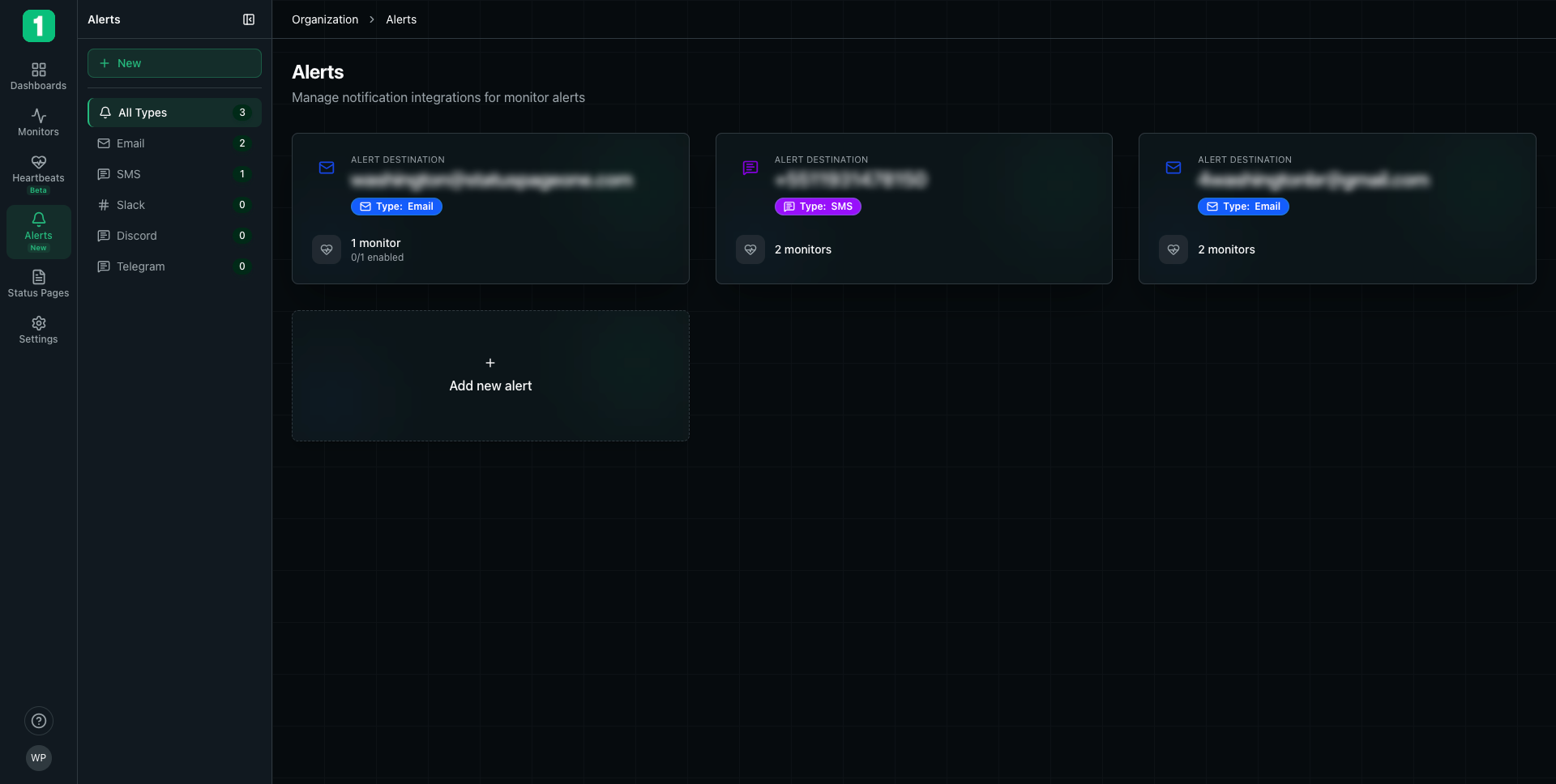
Accessing Alerts
Navigate to Alerts in the sidebar (or Settings → Alerts depending on your navigation structure).Alert Integrations
Integration Types
The sidebar shows available integration types and how many of each you’ve configured:- Email (2) - Email notifications
- SMS (1) - Text message alerts
- Slack (0) - Slack channel notifications
- Discord (0) - Discord channel notifications
- Telegram (0) - Telegram chat notifications
Integration Cards
Each integration is displayed as a card showing: Alert Destination:- Email address, phone number, or webhook URL
- Displayed prominently at the top
- Color-coded badge (Email, SMS, etc.)
- Shows the channel type at a glance
- How many monitors use this integration
- Example: “1 monitor”, “2 monitors”
- Shows “0/1 enabled” if disabled
Adding a New Integration
Click + Add new alert to create a notification destination:- Select the integration type (Email, SMS, Slack, etc.)
- Enter the destination details
- Configure which monitors should use this integration
- Save the integration
Integration Management
Viewing Integration Details
Click on an integration card to:- See which monitors use it
- Enable or disable the integration
- Edit the destination
- Delete the integration
Enabling/Disabling
Toggle integrations on or off without deleting them:- Enabled - Will receive notifications
- Disabled - Paused, but configuration preserved
Deleting Integrations
Remove integrations you no longer need:- Click on the integration
- Select delete option
- Confirm deletion
Integration Types Detail
Email Integrations
Use Cases:- Team member notifications
- Ticketing system integration
- Email-based alerting
- Documentation and audit trail
- Email address
- Optional display name
SMS Integrations
Use Cases:- On-call engineer alerts
- Critical service notifications
- Backup notification method
- Immediate mobile alerts
- Phone number with country code
- Example: +1-555-0123
SMS notifications may incur additional costs. Use for critical monitors only.
Slack Integrations
Use Cases:- Team channel notifications
- Incident response coordination
- Real-time team awareness
- Webhook URL from Slack
- Channel name
Discord Integrations
Use Cases:- Community notifications
- Developer team alerts
- Gaming/tech communities
- Webhook URL from Discord
- Channel configuration
Telegram Integrations
Use Cases:- Mobile-first alerts
- International teams
- Personal notifications
- Bot token or chat ID
- Channel configuration
Organization-Wide vs Monitor-Specific
Organization-Wide Alerts (This Page)
- ✓ Centralized management
- ✓ Reusable across monitors
- ✓ Easier to maintain
- ✓ Can be applied to multiple monitors
Monitor-Specific Alerts
- ✓ Custom per monitor
- ✓ Different recipients per service
- ✓ Configured on monitor’s Alerts page
Best Practices
Create Reusable Integrations
Create Reusable Integrations
Set up integrations here once, then apply them to multiple monitors instead of recreating for each monitor.
Use Descriptive Names
Use Descriptive Names
If the integration supports names, use clear labels like “Engineering Team Slack” or “On-Call SMS”.
Separate Critical and Non-Critical
Separate Critical and Non-Critical
Create different integrations for critical vs non-critical alerts to avoid alert fatigue.
Test Before Deploying
Test Before Deploying
After creating an integration, trigger a test to ensure it works correctly.
Review Regularly
Review Regularly
Periodically review and remove unused integrations to keep the list manageable.
Document On-Call Procedures
Document On-Call Procedures
Ensure team members know what to do when they receive alerts through each channel.
Common Configurations
Engineering Team Setup
Multi-Team Setup
On-Call Rotation
Next Steps
Integrations Guide
Detailed setup for each integration type
Notification Channels
Manage notification delivery
Monitor Alerts
Configure alerts for specific monitors
Incident Management
Handle incidents when alerts trigger